
The POTAmap, launched early in 2025, has several features for folks who are doing research on parks that they might want to activate or hunt. There’s a powerful search language called Park Query Language, for example. in PQL you can be really specific about what you want, so if I wanted to see all of the parks within 25 miles of my current location that I have not activated and have never had a CW QSO logged, I can do something like ?mine:0 macdist:25 mode:cw max:0 and see a display like this:
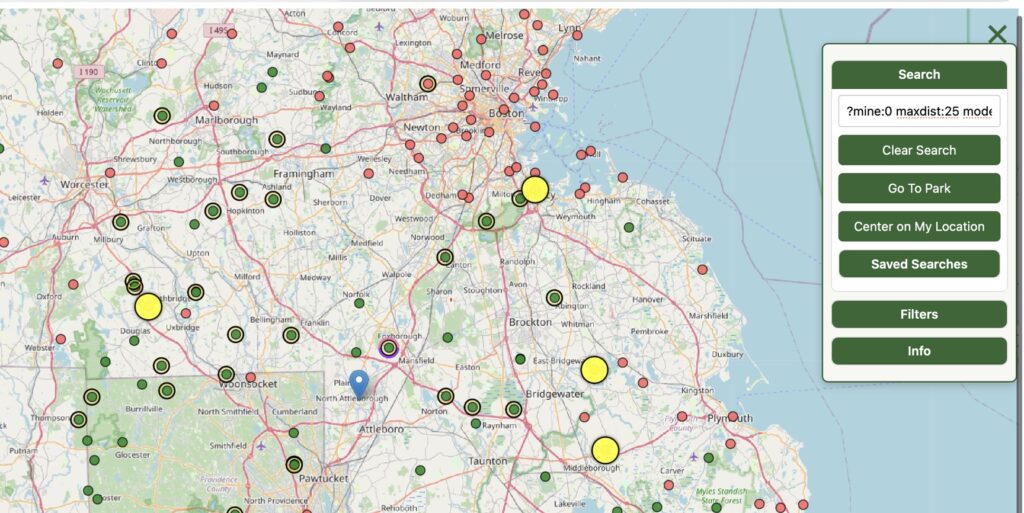
Each search can be named and saved, then replayed later. I tend to save searches like the one above while I’m looking for parks to activate, that way if I’m in the mood for some CW at a new park I can just pull up my previous search. There’s a good article on using PQL commands, with examples, right here on PN&R.
Today, though, we’re going to extend our research capabilities by taking notes right on the map. When you click on a park on the map, a data sheet pops up with some basic information:
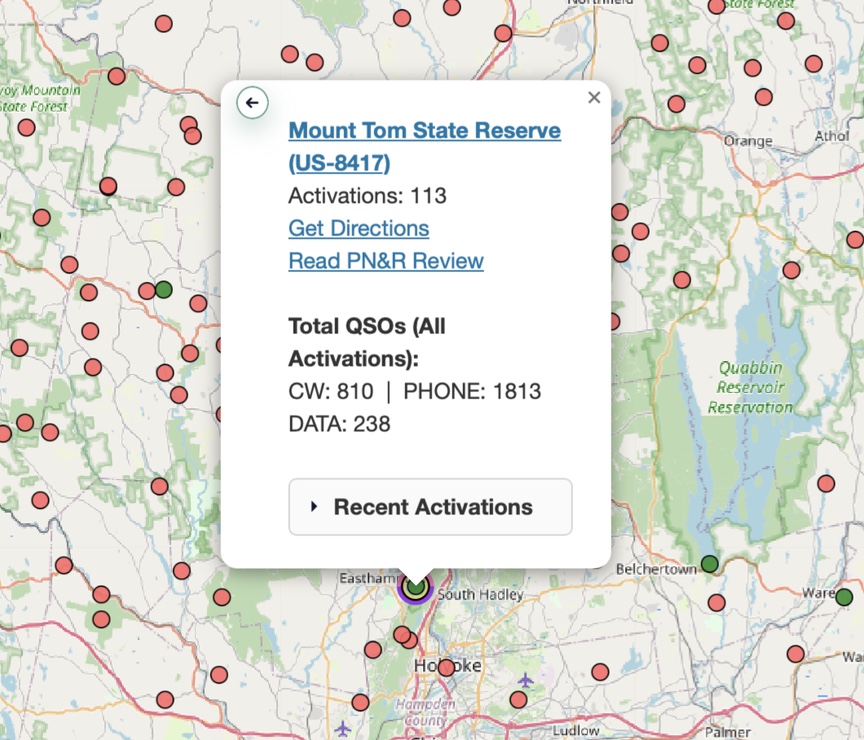
The mode counts are updated daily, as are the recent activations. If someone is at the park right now you’ll see a Current Activation pick at the bottom of the data sheet.
Things get more interesting when you click the little arrow in the upper-left corner of the data sheet. It’s a larger arrow at the bottom for phone users. This will spin the card around to reveal an area for taking notes.
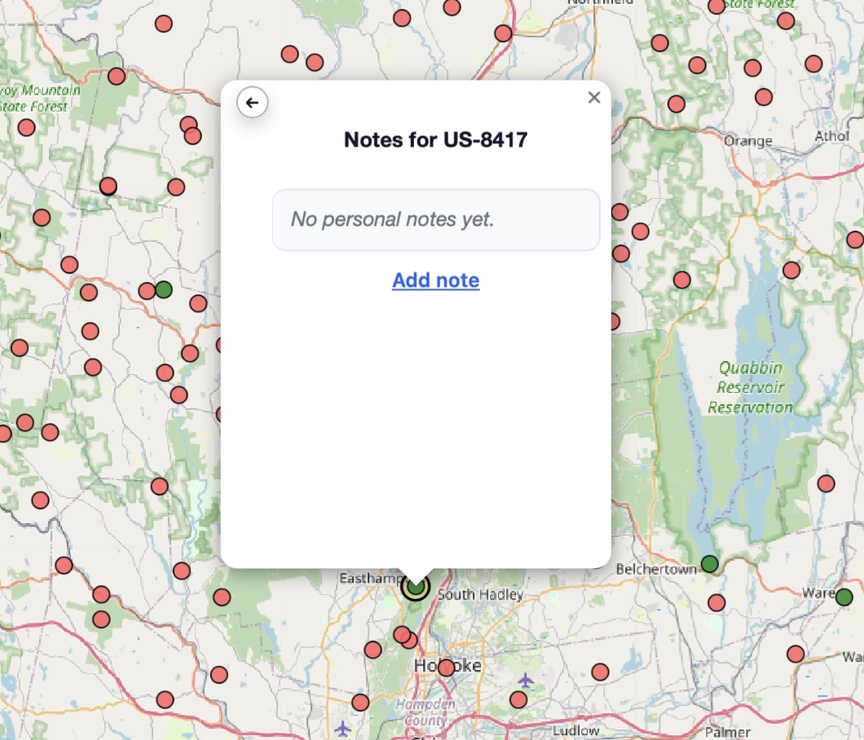
To start, just click Add Note. A text box opens up and you can start typing. when you are done click Done. The text you enter is displayed as you type.
You can use Markdown URL notation to add links to your note. Here, for example, I’ve added a link to the PDF trail map on the state’s web site, and also a link to a note in Bear, a note-taking and management application.
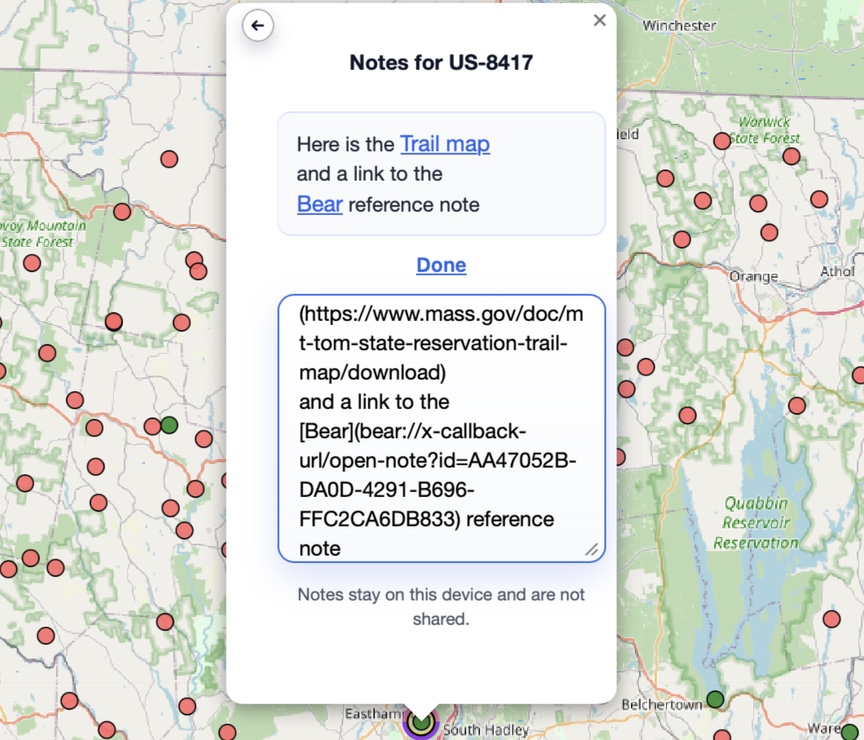
When you are done, click Done and the edit box collapses.
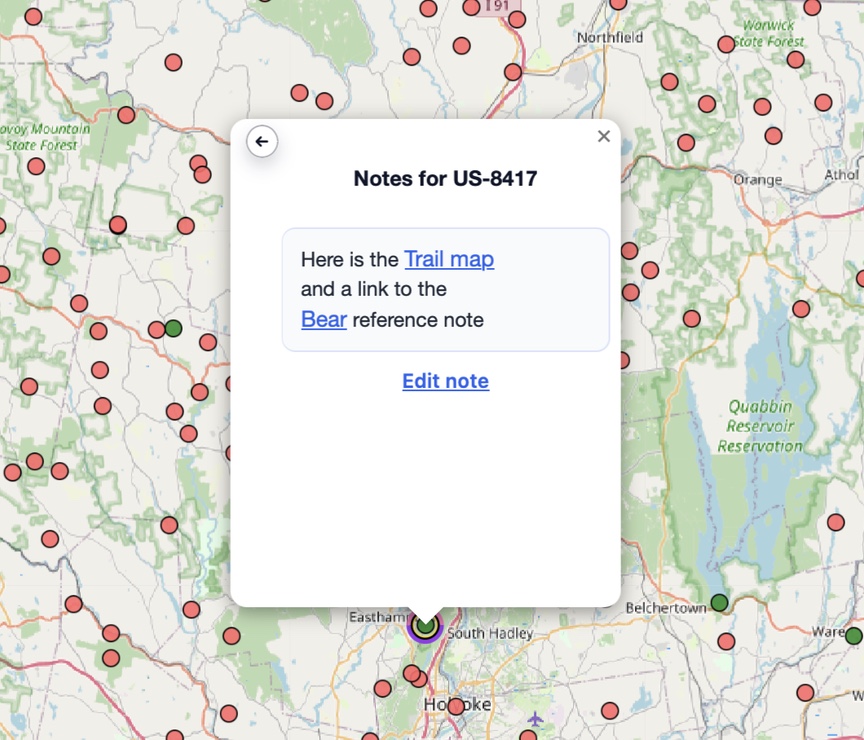
Your notes remain on your device and are not shared with anyone. This does mean that you might need to copy a note over from your desktop map to your phone’s map if you want access to the notes on the road. A little halo lights up around parks that include notes.
The best part of this in my opinion is the ability to link out to just about anything that supports inbound URLs. Web sites, of course, but many applications provide a URL based interface — you can see an example in the Bear note above. Bear is a note-taking application for Macs that is heavily tag-based. I use it to store information about parks as I do research, creating a new Bear note for each park, with the title being the park reference (US-8417 for Mt. Tom, for example). Other popular apps that let you do this sort of thing are Obsidian and Craft.
To make using the system for research as seamless as possible I installed the Bear web clipping application for Safari. It lets me select either part or all of a web page and send it directly to Bear. So, when I’m reading about possible hiking routes, history, looking for parking, whatever it happens to be on the web, I just click Send To Bear and add it to the note for the park I’m working on. Bear also installs a service on the Mac to let you clip from just about anywhere — emails, PDFs, text notes, images, whatever.
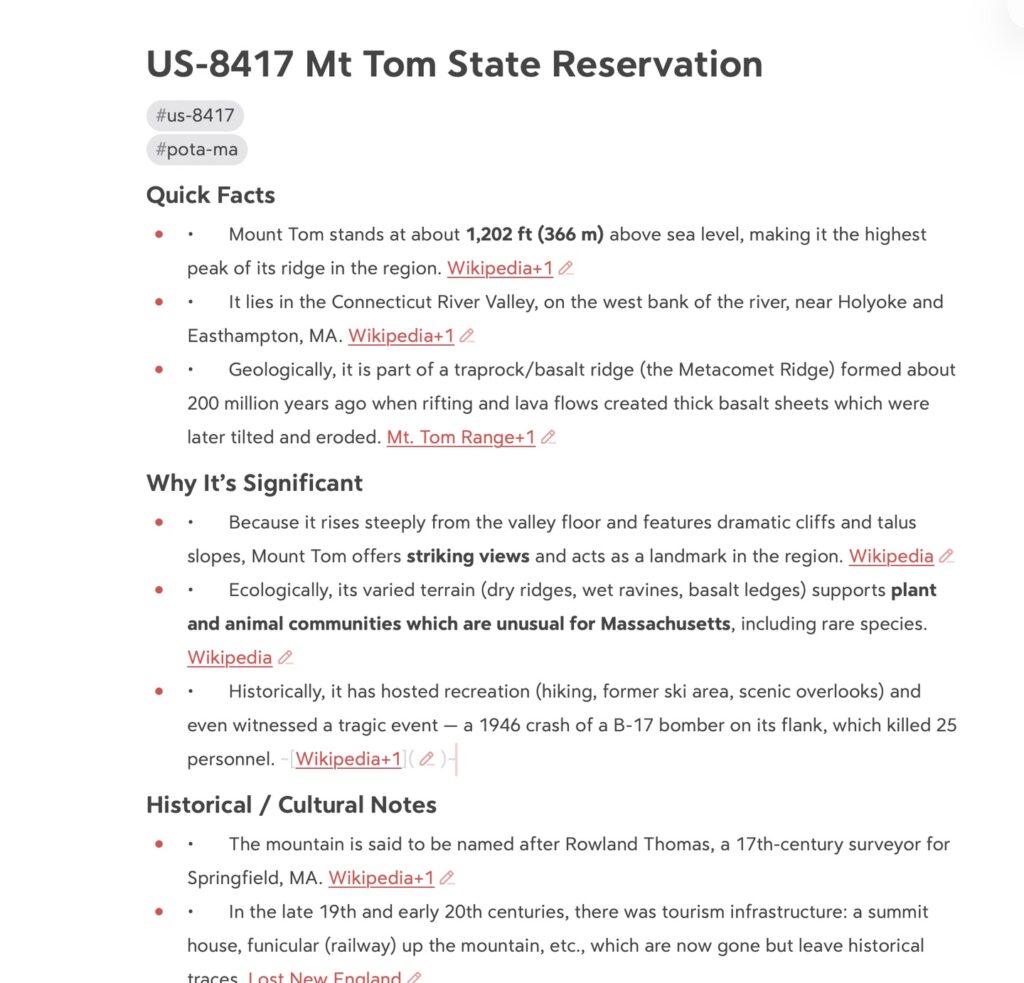
Here’s the example. We’ve been working on Mt. Tom, and I asked ChatGPT to give me a little backgrounder document about the park and that’s the note that was added to the data sheet. I copied its URL in Bear to add to the note. Clicking on the link on POTAmap brings up the Bear note:
This gives e a pretty robust research platform that is map-centric yet is able to manage a large collection of information. I can start on the map with a few PQL queries or just by browsing around, and then start digging in on those places that really interest me. In my case I’m often writing an article about the site, and Bear is where the source material goes.
I hope that this gives you some ideas on how you can add POTAmap to your own research activities!





One Response
I recently switched to Obsidian for note-taking, happy to report that the URI scheme works just as well as Bear’s.